Casings tab in the Well Table
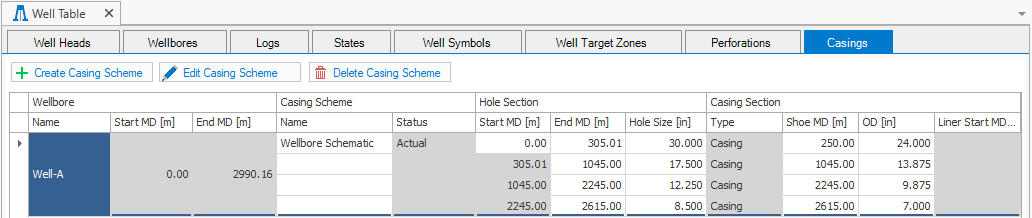
Casings tab in the Well Table click to enlarge
The Casings tab in the Well Table can be opened directly by clicking Show Well Table on the Along Wellbore form (wellbore stability > Predict Mud Weight > Along Wellbore) or on the Input and Boundaries form. You can also open the Well Table from Views in Workspace (Workspace > Views > Well Table).
The table in the Casings tab provides an overview of the schematic data for the casing designs you created using the Input and Boundaries form. You can visualize one casing design per wellbore. To display a different design in the table, first select the wellbore in the table and then select a casing design from the Name drop-down list, under Casing Scheme.
You can also edit or create casing designs for a wellbore using the Casing Scheme form. To access the form, click on the Create or Edit Casing Scheme buttons at the top of the tab. The table on the Casing Scheme form allows you to enter manually your schematic data or copy and paste if your data is in an Excel™ spreadsheet or other data source. New casing schemes are then displayed in the table of the Casings tab and also become available in the drop-down list of Casings design on the Input and Boundaries form.
When you have made an update to a casing design in the Casings tab, click the (Re)Calculate button on the Along Wellbore form to refresh the Mud Weight min and max values with the design changes in the Analyze MW Window table. The well schematic track in the Predict Mud Weight View is also updated accordingly.